/
Container Types CSV
Got feedback or spotted a mistake?
Leave a comment at the end of this page or email contact@krishagni.com
Container Types CSV
- Shraddha Ranpise (Deactivated)
- Aditi Kavimandan (Unlicensed)
- Divya Prabhu (Unlicensed)
Owned by Shraddha Ranpise (Deactivated)
You can create/update container types in bulk through the bulk operation.
Steps to import CSV
- Go to the containers' list page and click on the 'Types' button.
- Click on the 'Import' button and select option 'Container Types'.
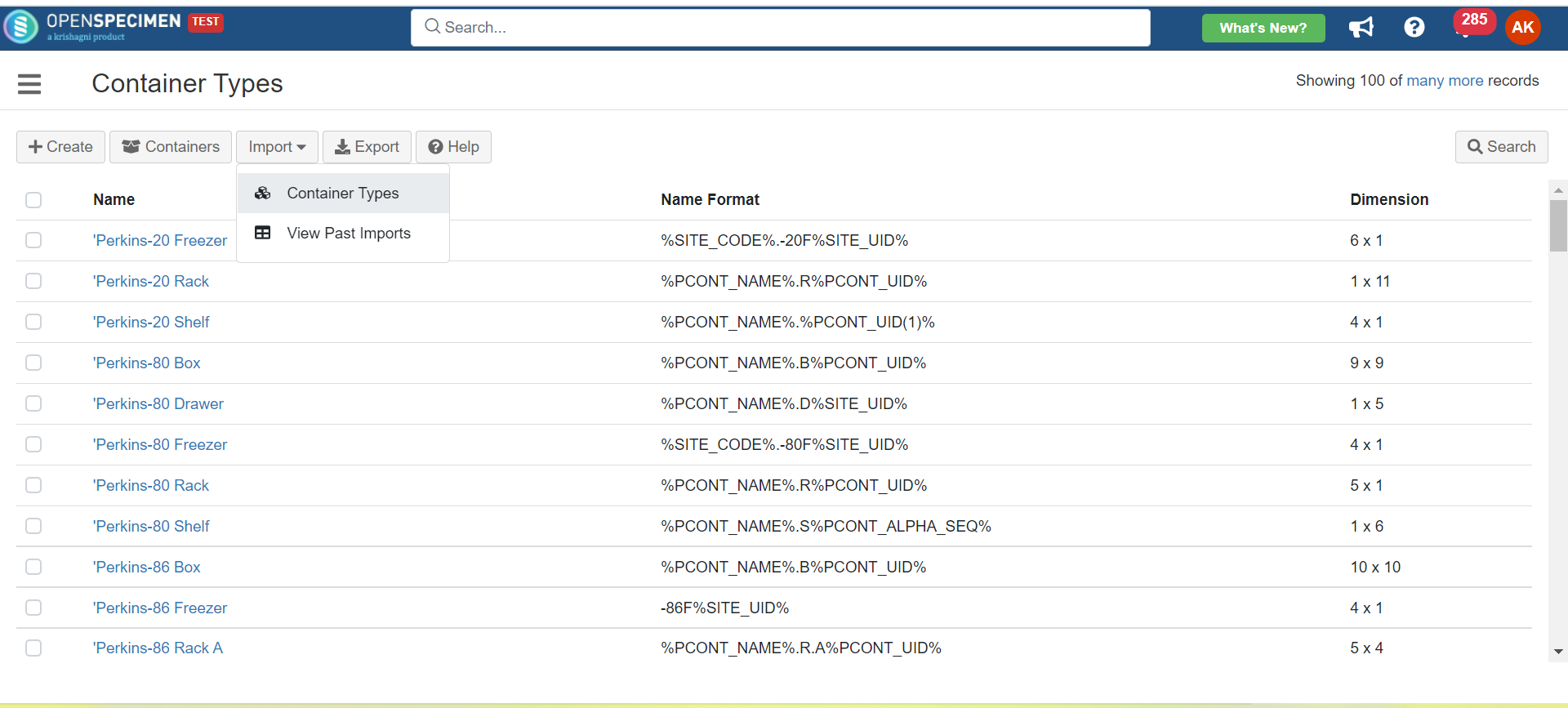
- Click on 'Download Template File' to download the template file from the 'Import Container Types' page.
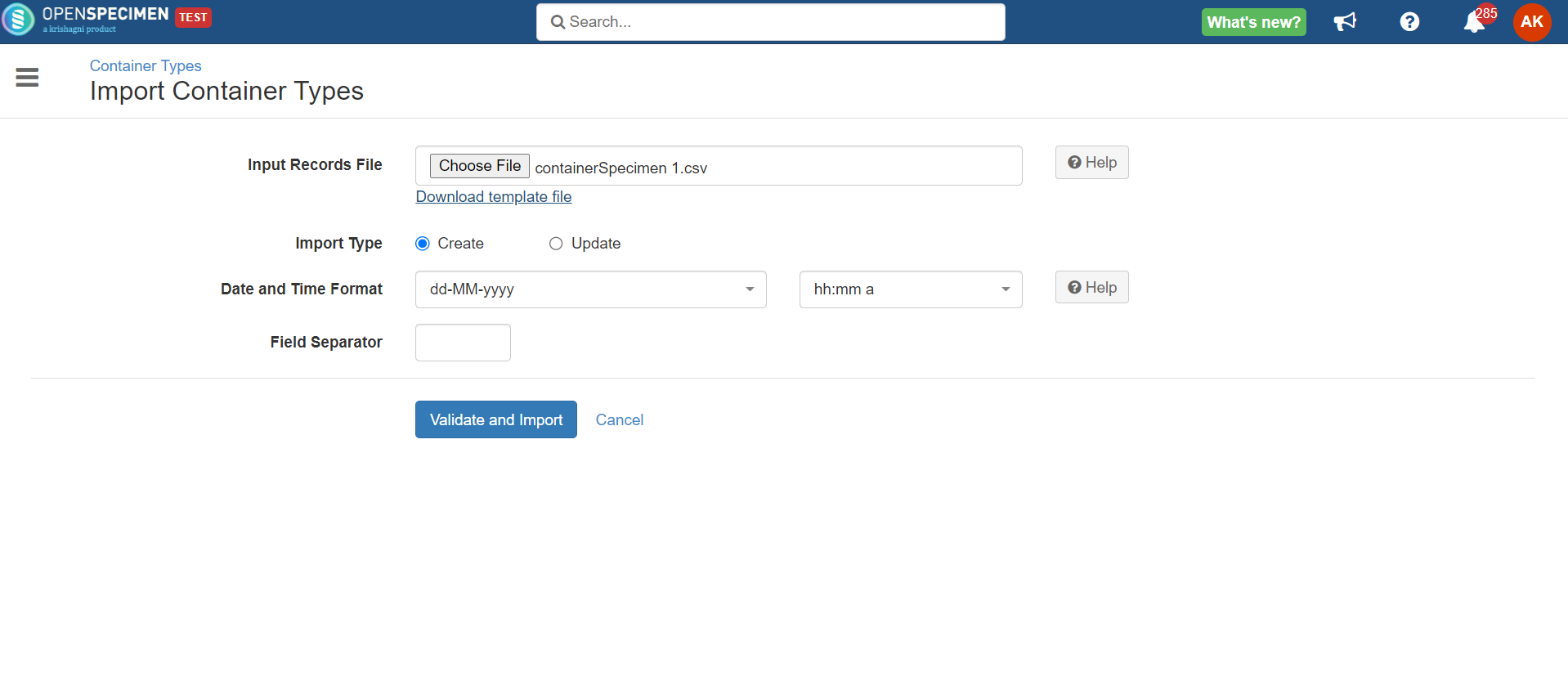
- Enter all valid data in the template file as mentioned in the 'Data Dictionary' table below.
- Upload the filled template file in the 'Input Records File' field.
- Select 'Import Type' as 'Create' to create new container types or 'Update' to update the existing container types.
- Click on the 'Validate and Import' button.
- Refer to' Import status' to check the status of the import job.
Sample CSV
Data Dictionary
| Column Name | Data Type | Mandatory? (Create) | Mandatory? (Update) | Description | Permissible Values | Validations |
|---|---|---|---|---|---|---|
| Identifier | Integer | No | No | System auto-generated identifier for each container type. | Mandatory only while updating container type name. | |
| Name | String | Yes | Yes | Name of the container types to be created. | It should be unique within the system. Mandatory while updating container type if the identifier | |
| Name Format | String | Yes | No | Name format for the container types to create. | Refer to the wiki page's 'Label Format' section wiki page to generate name formats. | |
| Temperature | Integer | No | No | |||
| No. of Rows | Integer | Yes | No | |||
| No. of Columns | Integer | Yes | No | |||
| Position Labeling Mode | String | No | No | Specifies whether to use (row, column) coordinates or integers like 1, 2, 3, etc., to identify positions within the container. When not specified, (row, column) coordinates labeling mode is used by default. |
| |
| Row Labeling Scheme | String | No | No |
| Default value: Numbers | |
| Column Labeling Scheme | String | No | No |
| Default value: Numbers | |
| Position Assignment | String | No | No | The position assignments of the containers. |
| |
| Stores Specimen | Boolean | No | No |
| ||
| Can Hold#Name | String | No | No | The child container the container types can hold |
, multiple selections available,
Related content
Creating storage containers
Creating storage containers
More like this
Container Types
Container Types
More like this
Dimensionless Containers
Dimensionless Containers
Read with this
Containers CSVs
Containers CSVs
More like this
Roles and Privileges
Roles and Privileges
Read with this
Container Shipments CSV
Container Shipments CSV
More like this
Got feedback or spotted a mistake?
Leave a comment at the end of this page or email contact@krishagni.com