/
Container Shipments CSV
Got feedback or spotted a mistake?
Leave a comment at the end of this page or email contact@krishagni.com
Container Shipments CSV
- Shraddha Ranpise (Deactivated)
- Nidhi Harmukh (Unlicensed)
Owned by Shraddha Ranpise (Deactivated)
Last updated: Jul 30, 2019 by Nidhi Harmukh (Unlicensed)
You can create shipment of containers holding specimens in bulk through a bulk operation.
Steps to import CSV
- Go to home page and click on 'Shipments' card
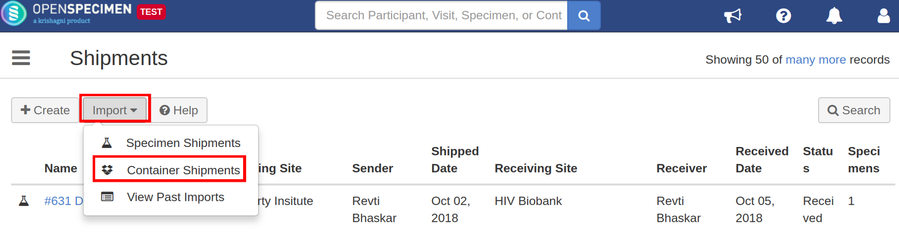
- Click on 'Import' button and select option 'Container Shipments' from shipments list page
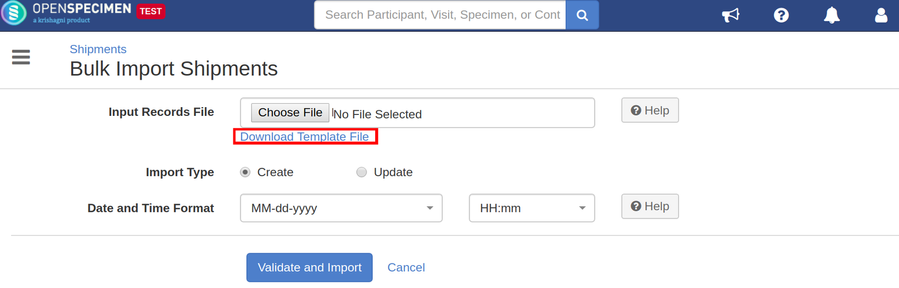
- Click on 'Download Template File' link to download the template file
- Enter all valid data in the template file as mentioned in the below 'Data Dictionary' table
- Upload the filled template file in 'Input Records File' field, select 'Import Type' as 'Create' to create or 'Update' to update container shipments
- Click on 'Validate and Import' button
- Refer 'Import status' to check the status of import job
Sample CSV
Data Dictionary
Column Name | Datatype | Mandatory? (Create) | Mandatory? (Update) | Description | Permissible Values | Validations |
|---|---|---|---|---|---|---|
Identifier | Number | No | Yes | System auto-generated unique number for every shipment | Can be left blank during add, this is used only during edit | |
| Name | String | Yes | Yes | Name of the shipment | ||
| Courier Name | String | No | No | Courier name of the shipment | ||
| Tracking Number | String | No | No | Tracking number of the shipment | ||
| Tracking URL | String | No | No | Tracking URL of the shipment | ||
| Sending Site | String | Yes | Yes | The sending site of the shipment | Should exist within OS | |
| Receiving Site | String | Yes | Yes | The receiving site of the shipment | Should exist within OS | |
| Shipped Date | Date & Time | No | No | The date on which the container is shipped from sending site | ||
| Sender Comments | String | No | No | |||
| Received Date | Date & Time | No | No | The date on which the container is received at receiving site | ||
| Receiver Comments | String | No | No | |||
| Status | String | No | No |
| ||
| Sender#Email Address | Email Address | No | No | Email address of the sender | Should exist within OS | |
| Receiver Name#Email Address | Email Address | No | No | Email address of the receiver | Should exist within OS | |
| Shipment Item#Quality | String | No | No |
| ||
| Shipment Item#Container#Name | String | Yes | Yes | The name of the container to be shipped | ||
| Shipment Item#Container#Storage Location#Name | String | No | No | The name of the container in which the received container is to be store |
If left blank, the system will store the received container in the virtual container of that site. | |
| Shipment Item#Container#Storage Location#Row | String | No | No | Row position of the storage container | ||
| Shipment Item#Container#Storage Location#Column | String | No | No | Column position of the storage container | ||
| Shipment Item#Container#Storage Location#Position | String | No | NO | Linear position in its parent container |
, multiple selections available,
Related content
Shipment of Containers
Shipment of Containers
Read with this
Containers CSVs
Containers CSVs
More like this
Shipments
Shipments
More like this
Kits Shipments
Kits Shipments
More like this
Shipment of Specimens
Shipment of Specimens
More like this
Specimens CSV
Specimens CSV
More like this
Got feedback or spotted a mistake?
Leave a comment at the end of this page or email contact@krishagni.com